
Part7: Creating & Associating Suppliers with products
Apache OFBiz manages suppliers and associated products with them for purchase purpose. A supplier can supply more than one product where as different multiple suppliers can supply a single product.
Founder, Viithiisys

Apache OFBiz treats a supplier as a party first and a supplier second, so creating one means creating a person or group before any product can be associated with it. This guide covers both steps: the supplier record, then the products it supplies.
There are some steps to create a supplier:
1.Create new person for creating a new supplier.
2.Assign role of Supplier to the new person created.
3.Associate suppliers to the respective product.
How to create a supplier party in OFBiz
1). Go to party manager and click on option “party” from the dropdown.

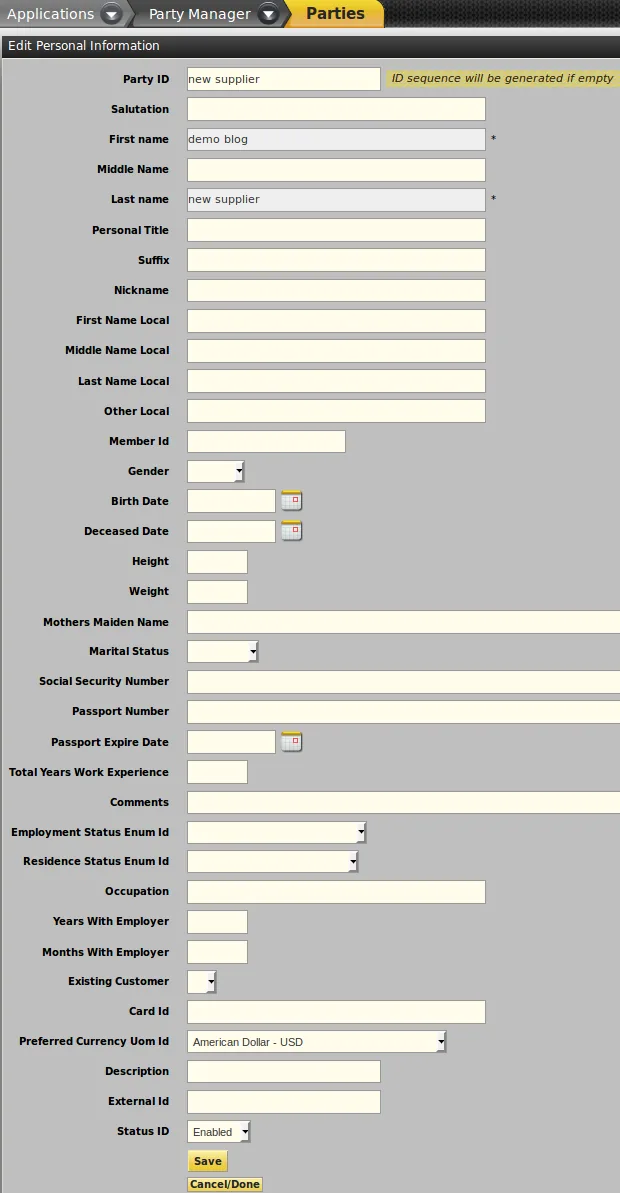
2). Click on “Create new person” button.
3). Add details like party id, product type, Owner, Preferred Currency Id and finally click on “save”.
How to assign the supplier role
1). Click on “party” from the dropdown and search created “supplier_id”.

2). After opening “created supplier_id”, click on role button.
3). Add Role as “Supplier” from drop down finally click on “Add”.
How to associate a supplier with a product
1). Go to catalog manager and select “catalog” from the drop down.
2). Open a product and click on “supplier” button.
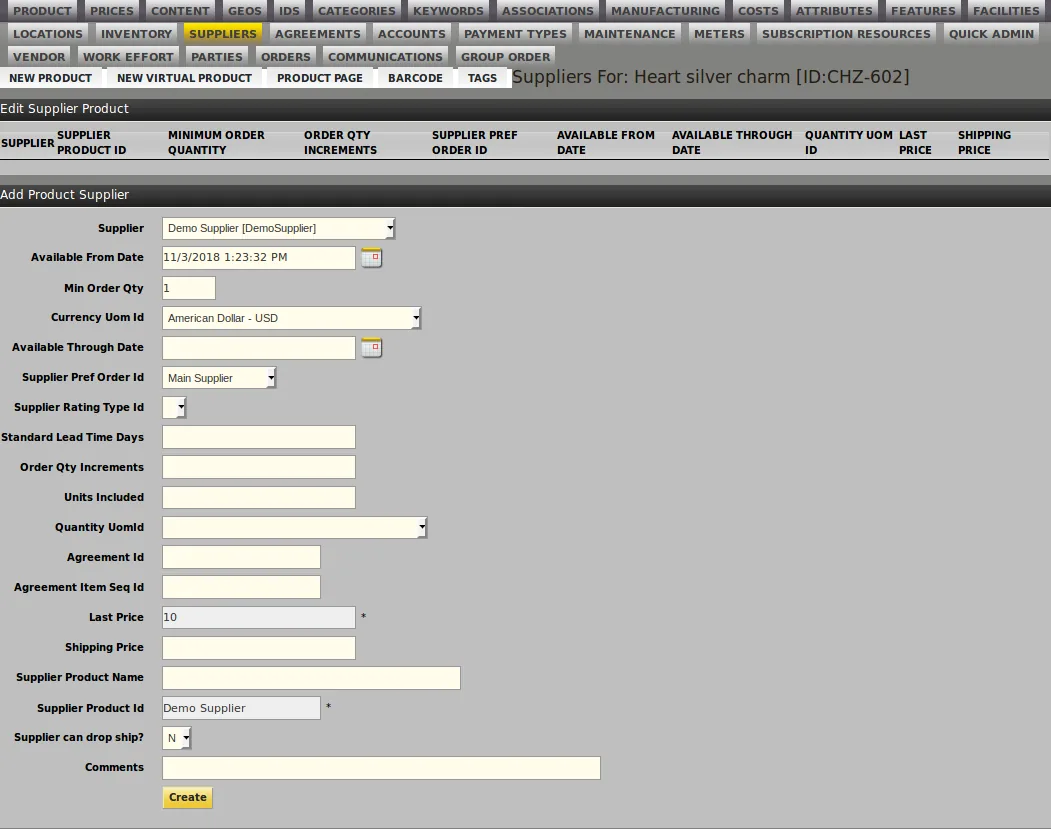
3). Select “Supplier id” from dropdown and add details like Min Order Qty, Currency Uom Id, Last Price(The price at which you purchased item from the supplier), Supplier Product Id and finally click on “create”.
How to add multiple suppliers to one product
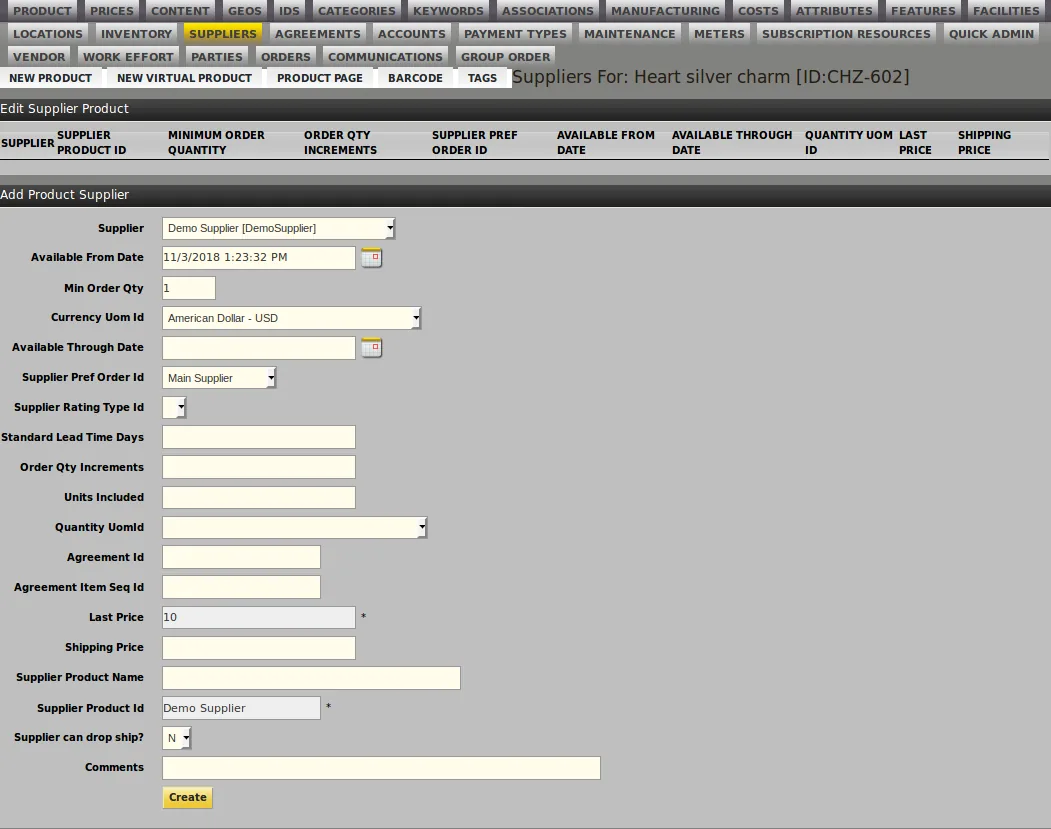
If a product is purchased from two or more suppliers then assign multiple suppliers to a single product. Supplier list price calculates the average cost of product. In E-commerce we can easily manage the purchasing quantity of products bought from different suppliers and also easily return them if defective products are shipped.